






Original price was: $225.00.$200.00Current price is: $200.00.
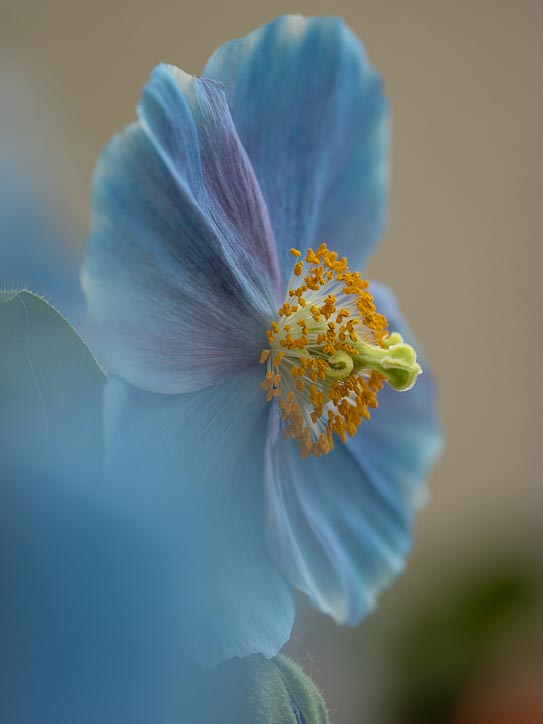
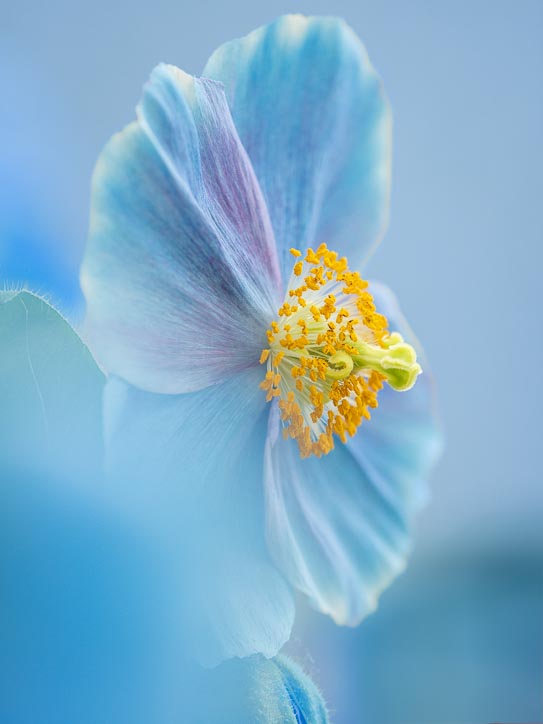
Capturing an image is only half of the creative process. The majority of all images can be greatly improved with some basic editing/post processing. And if you shoot in the RAW file format, then you absolutely need to apply post processing to your images. Unlike JPG files-which have color, contrast, sharpening, white balance and more settings all applied in-camera, RAW files have nothing applied to them in-camera, and require at least some measure of editing to make them pop.
Adobe Lightroom Classic is a core piece of editing software in the majority of photographer’s post-processing workflows-and for good reason. It is an easy to use, feature-packed application that helps you organize, edit and share your images in a few easy and non-destructive steps. After using LrC for more than 15 years, I have grown to love editing my images, and wouldn’t trade the file management system for anything.
Who Are These Classes For? Everyone who would like to take their photography to the next level with simple edits that will enhance and bring out the essence of the image.
In this four-part series, we will go through everything you need to get up and running and using Lightroom Classic with ease.
The lessons will take you from beginner to power-user in no time flat. Lessons will begin with an understanding of how LrC works, what the LrC catalog is, how to easily and non-destructively edit your images, and the more advanced editing tools that are part of the program. It is my intention to also include a demonstration of the “Remove Distractions” feature that is in Photoshop at some point along the way. More specific details will be part of the description for each lesson.
This is a live learning series that was recorded early 2025. Each lesson runs approximately two hours, with some question and answer time at the end. Practice files are included for each lesson (where applicable), as well as a detailed set of notes
Description
Series Breakdown:
Lesson 1 – Getting Started Right, The Catalog and Organization
The ultimate goal of this class is to get you very comfortable with what LrC is, what it does, how to get around, best practices for organization and backing up, and simple steps for cleaning up any mess you’ve created with your existing catalog and images in the past.
Topics:
- Which Lightroom app should I use – there are 3 options
- What to do once the software is downloaded and installed
- What is a LR catalog? How many catalogs should you use?
- Where to store your Lightroom catalog
- Where to store catalog backups (catalog preferences)
- Getting organized BEFORE getting started with importing and editing. Dos and Don’ts.
- Deciding where to store your images
- Have a Back up strategy for your images -3,2,1 method. Protect your priceless images! Backblaze back up cloud info
- Catalog Updates-How to know if there’s an update, how to update, what happens, messages, how it names and saves new catalog
- Catalog preferences and Catalog Settings recommendations (File menu)
- How To Import Images into LR catalog – from card, card reader, internal & external drives
- Understanding the Import dialog box. Critical things to watch out for
- Folder structure considerations
- Setting up your personal metadata to be applied on import
- Catalog overview-how to get around LR, modules, Library panels and sections
- Using Solo Mode for panels
- Adding keywords to images-how and why
- Rating images-how and why
- Color labels -how and why to use them
- How to easily find images using keywords, stars, metadata, etc
- How to sort images (I uses chronological Z to A)
- Thumbnails- info
- How to search metadata – options
- Working with images – how to sort them in for viewing in catalog
- Sorting through images after import. Selecting Keepers and Rejects
- Rating and labeling images if we didn’t get through that in lesson 1
- For those who have been using LR but have a mess in the their catalog-how to clean up and re-link the unlinked images
Lesson 2 – Intro To the Develop Module and Basic Edits
Topics:
- Getting around the Develop module
- Organizing by creating Collections, Collection Sets
- How to find images previously imported using sorting options
- Creating a Quick slideshow
- Quick Develop in Library module
- Overview of Develop module
- Navigator image preview
- Snapshots and History panels
- Two types of edits-global and local
- Camera RAW profiles
- Presets – what they are and how to use them. How to create your own
- Viewing, using the histogram
- Creating and using Virtual copies
- Crop Tool – overlays, eliminate distractions
- Basic Panel editing tools – Auto adjustments, B/W conversion, Camera Profiles, Profile presets,
- Setting White balance,
- Tone adjustments-Exposure, contrast, highlights, shadows, whites, blacks
- Presence Adjustments – Texture, clarity, dehire, vibrance, saturation,
- Calibration panel
- Effects – Adding a vignette for a finishing touch
- Lens corrections – Settings and how to use
- Syncing adjustments across multiple images
- Resetting individual and all settings
Lesson 3 – The Develop Module Part 2_Advanced Editing -Adding the WOW Factor To Your Images
Topics:
- Using shortcuts to speed up workflow
- Remove tool – difference between new Content Aware Healing, Heal, Clone tools
- Masking- the power of “local” editing-Select Subject, Select Sky, Select Background, Select Object
- Radial Gradient
- Linear Gradient
- Adjustment Brush
- Select People Mask
- Adaptive AI Portrait Presets
- Range Masks
- Color Mixer – Hue, Saturation, Luminance, Black and White mixer
- Color Grading – adjusting color in highlights, shadows and midtones
- Lens Blur
- Lens Corrections panel – removing chromatic aberrations, lens profiles
- Exporting images – saving edited changes, exporting for social media
- Adding a watermark
Lesson 4 – Develop Module Part 4, LR Mobile, Photoshop Remove Distractions
Develop and Remaining Modules and More
- Lens Corrections panel – removing chromatic aberrations, lens profiles
- Transform
- Color Grading – adjusting color in highlights, shadows and mid-tones
- New Lens Blur
- Lens Corrections panel – removing chromatic aberrations, lens profiles
- Noise Reduction
- Sharpening
- Transform
- Merge To HDR
- Merge to Panorama
- HDR Panoramas
- Automatically matching exposures for HDR and panorama stitching
- Upscaling images using Enhance Super Resolution
- Slideshow Module – Getting started creating a slide show
- Map Module – what it is and does
- Removing distractions easily in Photoshop
- Using Lightroom CC to sync photos for sharing